
Detailed Description
How to Assign Vehicles and Drivers Using Dispatch Planner
- Go to Fleet → Dispatch Planner
- Select Planning Mode
- Vehicle Type Wise or Driver Wise
- Choose Date & Trip
- Assign Vehicle & Driver
- Confirm Dispatch
- Click Save / Confirm
Visual Walkthrough
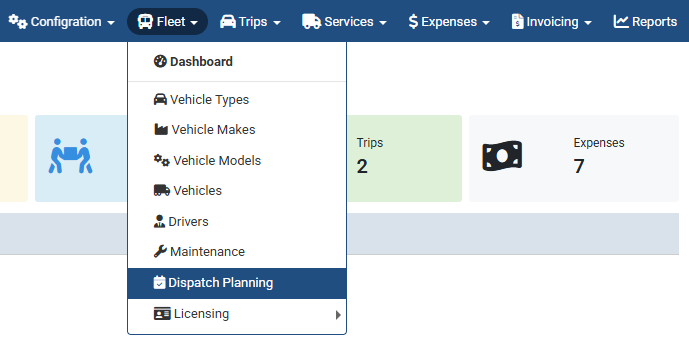
How toUse Dispatch Planner :
- Go to Fleet → Dispatch Planner
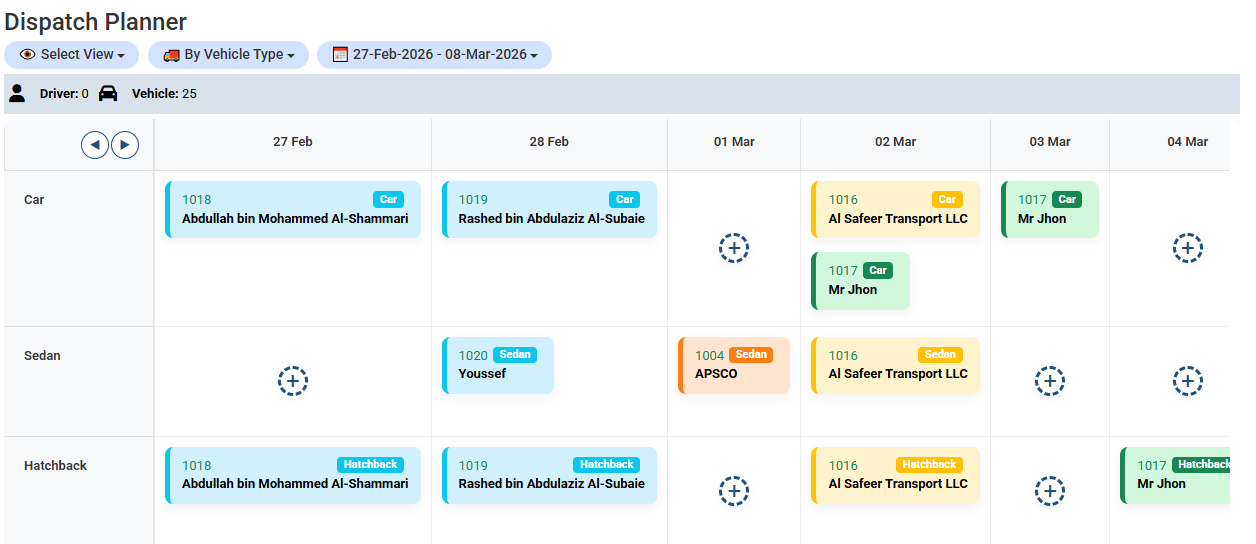
How to Assign Driver & Vehicle from Dispatch Planner :
- Click on the Service ID or booking box in the Dispatch Planner grid.
-
A popup window will open where you can select the Driver and Vehicle.
Save the assignment to confirm and update the schedule instantly.
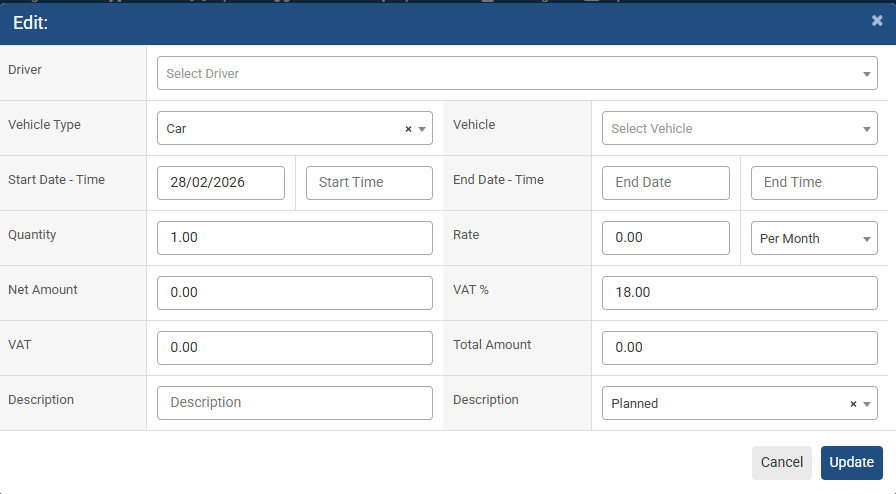
How to Assign Driver & Vehicle from Dispatch Planner :
Select Driver & vehicle from here & change some other info.
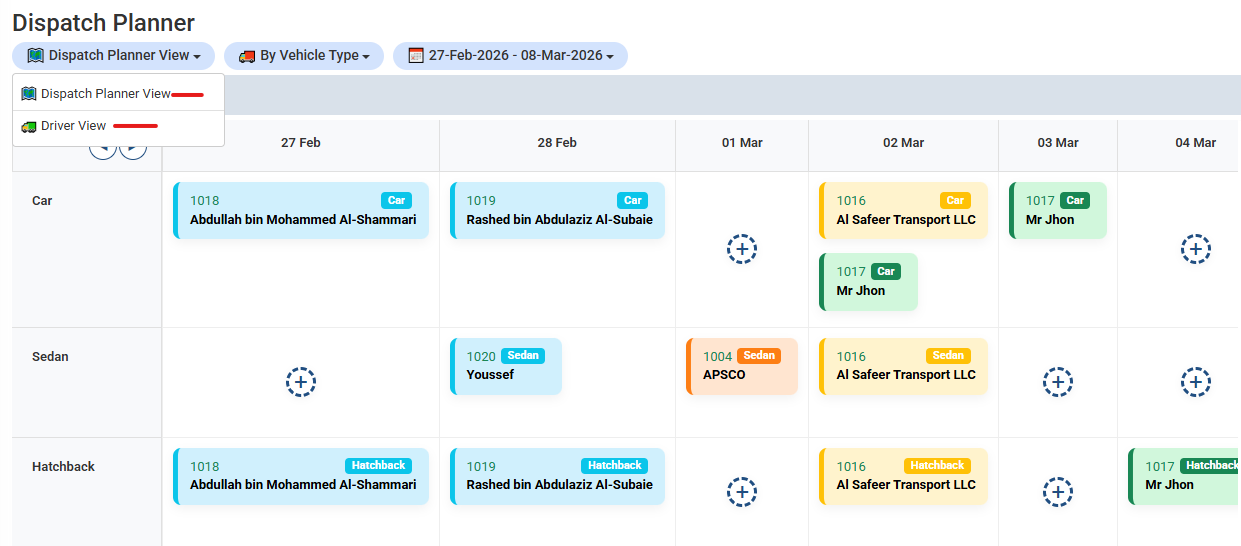
Dispatch Planner – Multiple Views Available :
The Dispatch Planner provides flexible viewing options to help you manage fleet operations more effectively.
Dispatch Planner View (Vehicle Type View)
-
Displays schedule based on vehicle categories (Car, Sedan, Hatchback, etc.).
-
Ideal for planning vehicle availability and utilization.
-
-
Driver View
-
Displays schedule based on assigned drivers.
-
Useful for monitoring driver workload and availability.
-
How to Switch Views
-
Click on the Dispatch Planner View dropdown at the top left.
-
Select your preferred option:
-
Dispatch Planner View
-
Driver View
-
-
The planner grid will update automatically according to the selected view.
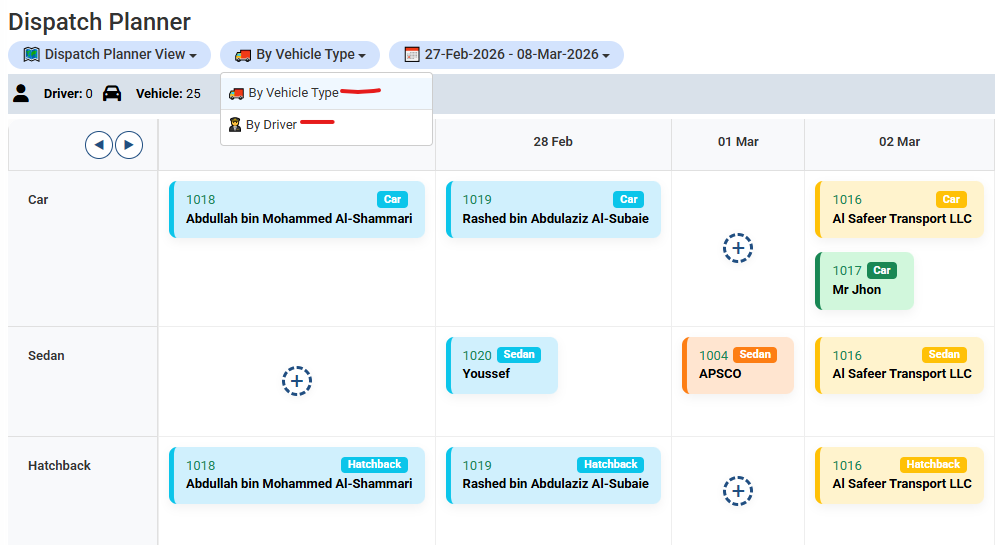
Dispatch Planner – View Options :
- Dispatch Planner provides flexible viewing options for better scheduling control.
You can switch between By Vehicle Type and By Driver view.
Select your preferred option from the dropdown to update the planner instantly.
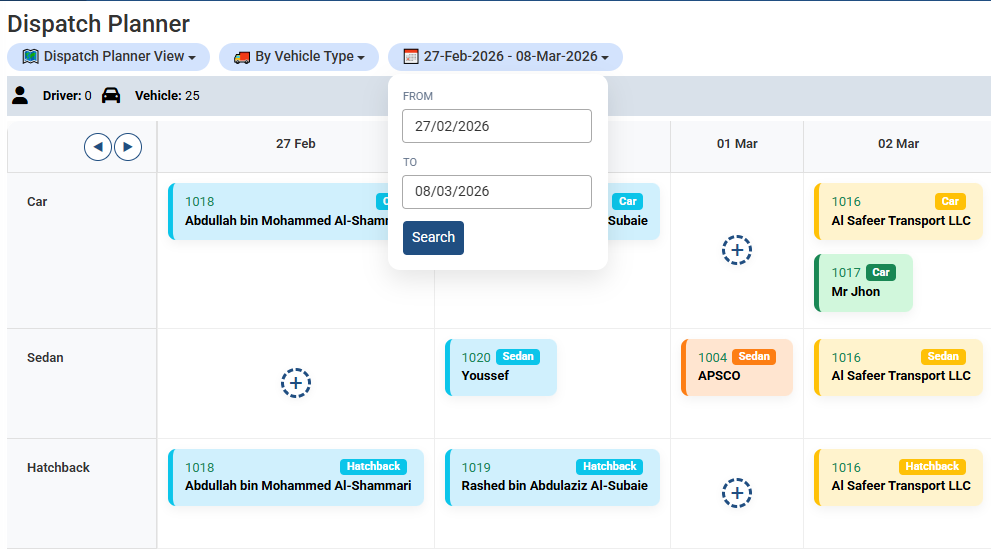
Dispatch Planner – View Options :
- Dispatch Planner provides flexible viewing options for better scheduling control.
You can select From Date and To Date to view schedules within a specific time range.
Choose your preferred date range from the dropdown to update the planner instantly.
No video tutorial available.
No related articles found in this category.