
Deactivate Employee allows administrators to securely disable an employee's active status while preserving their historical data. You can specify the deactivation type (e.g., Resignation, Termination) and provide a reason for future reference.
Navigate to Employees > Profiles. Find the target employee, click the Action icon (three dots), and select Edit. Click on the Delete Employee tab from the top navigation bar. Scroll to the Deactivate Employee section. Type "deactivate" in the box, select the Deactivation Type, enter a Deactivation Reason, and click on the Deactivate Employee button. Verify that the employee's status has changed to InActive in the Manage Employees list.
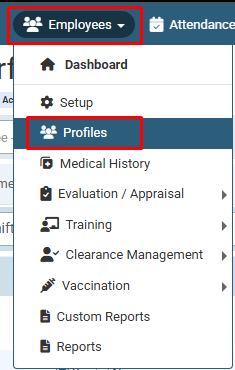
Click on Employees > Profiles.
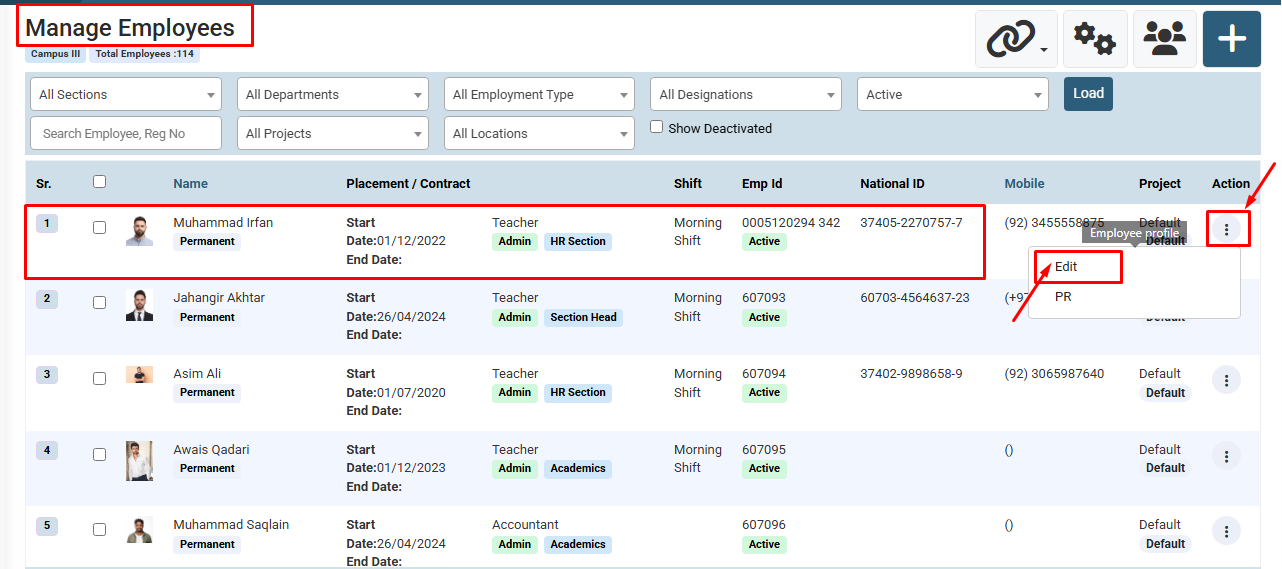
Locate the employee, click the Action icon (three dots) under the Action column, and select Edit
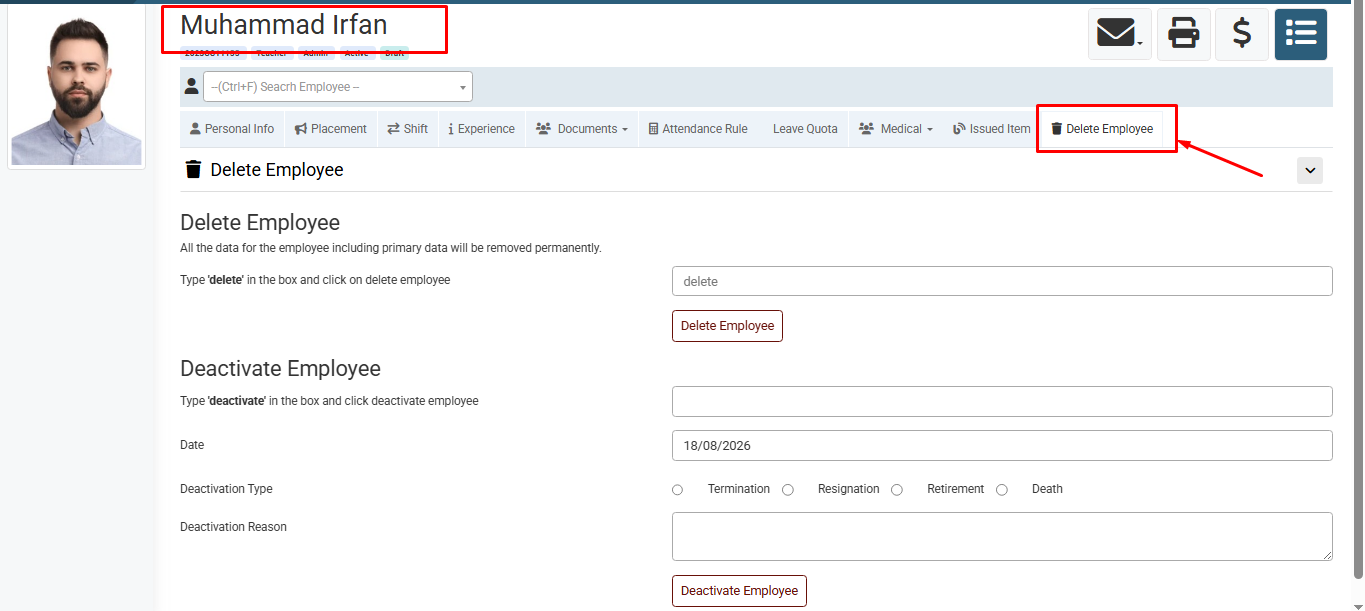
Inside the employee's profile, click on the Delete Employee tab from the menu.
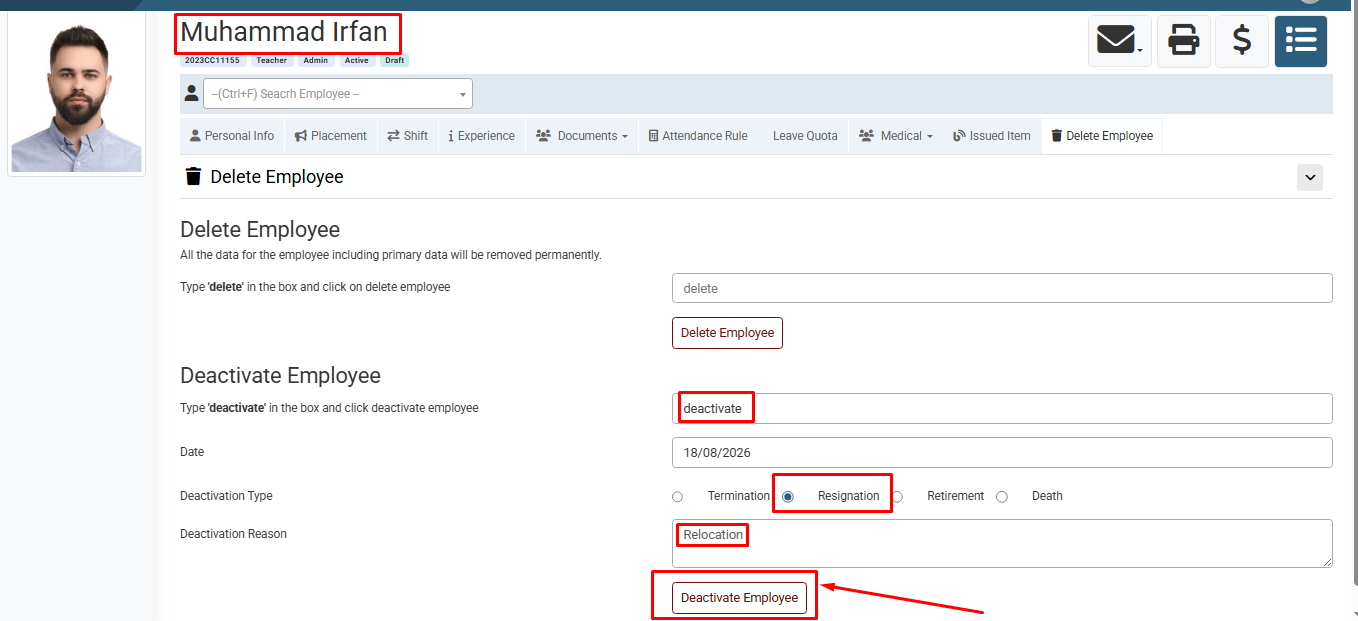
In the Deactivate Employee section, type "deactivate", select the type (e.g., Resignation), enter the reason, and click the Deactivate Employee button.
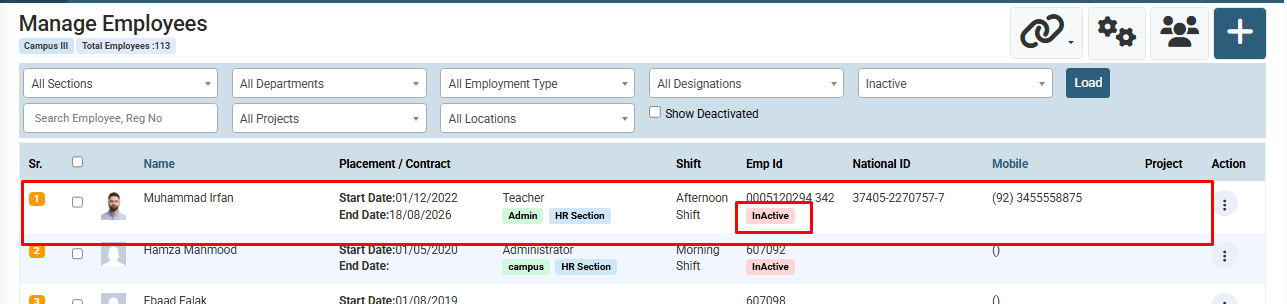
Finally, verify that the employee's status is now showing as InActive in the Manage Employees list.
No video tutorial available.
No related articles found in this category.