
This Guide & Explain article helps you view different Attendance Reports in CloudCampus ERP LMS Academics.
Follow the steps below to access the attendance dashboard and view the required reports.
1- Go to the Attendance module → Reports to open the attendance reports dashboard.
2- Review the Attendance Dashboard to check overall attendance information such as Total Students, Total Present, Total Absent, Total Leave, and Holiday records.
3- Check the Monthly Attendance Trend to view the attendance trend for different dates, including Present, Absent, and Holiday records.
4- View the Student Attendance Weightage section to review the overall attendance percentage and attendance distribution.
5- Go to the Reports section on the right side of the dashboard to access the available attendance reports.
6- Click Student Attendance Report to view attendance details for individual students.
7- Click Daily Attendance Report to view attendance records for a specific day.
8- Click Monthly Attendance Report to view attendance records for a selected month.
9- Click Empty Attendance Report to view attendance records where attendance has not been marked.
10- Click Attendance Report to view the available attendance information according to the required criteria.
11- Click Daily Attendance Summary to view a summarized report of daily attendance.
12- Click Subject Wise Monthly Attendance to view monthly attendance records according to subjects.
13- Click Student Subject Attendance to view attendance details of a student according to each subject.
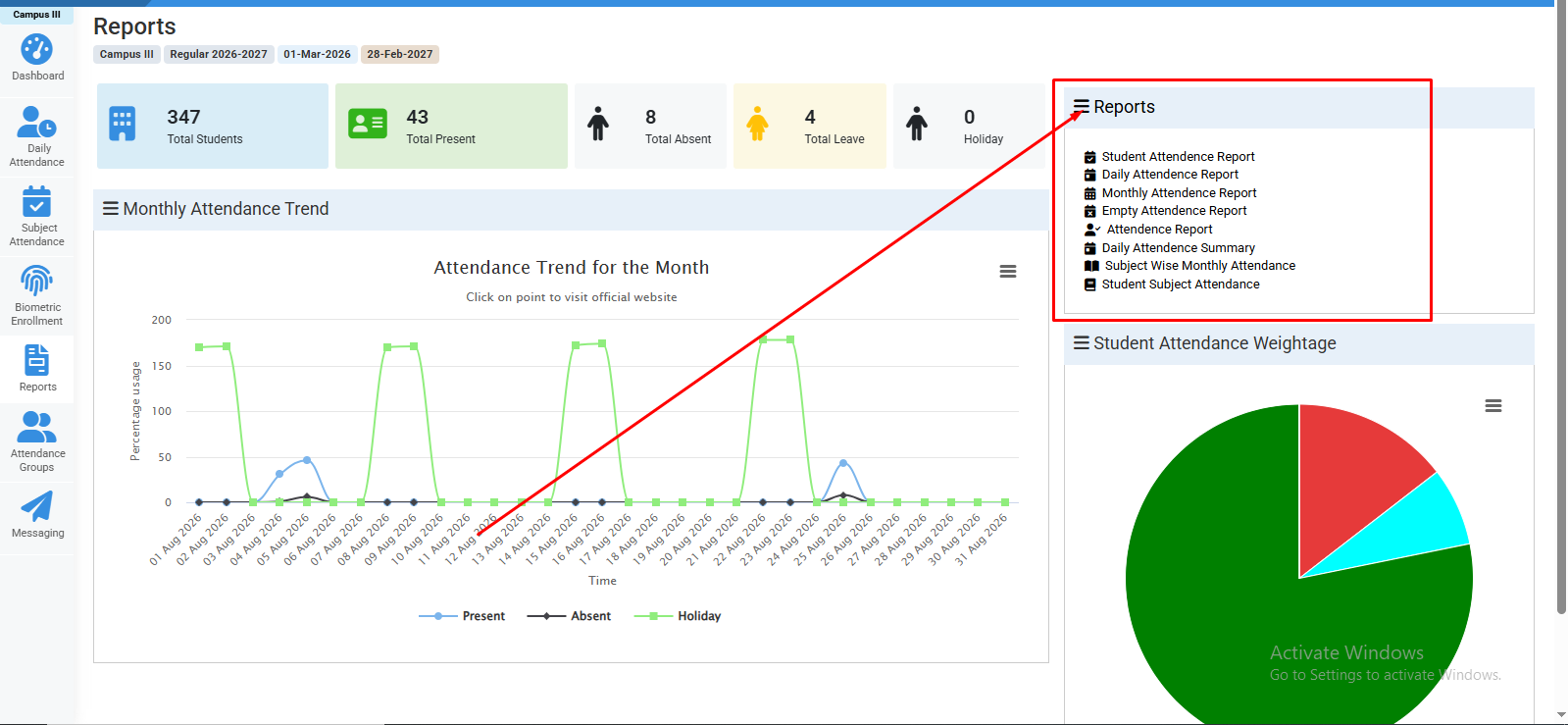
Attendance>Reports>Select required report to view.
No video tutorial available.
No related articles found in this category.