
This Guide & Explain article provides a simple step-by-step process for adding Subject Attendance in LMS Academics. The feature helps schools and institutes record and manage student attendance against specific subjects.
1- Select Attendance by opening the Attendance module from the available LMS Academics options.
2- Select Subject Attendance to open the screen where subject-wise student attendance can be added.
3- Select class and section by choosing the required Class and Section to display the relevant student list.
4- Select subject by choosing the required Subject for which you want to record attendance.
5- Select attendance date by choosing the required Date for which the attendance needs to be added.
6- Mark attendance by selecting the appropriate Attendance Status, such as Present, Absent, Leave, or Holiday, for each student.
7- Review attendance to make sure the correct Attendance Status has been selected for all students.
8- Save attendance record by clicking the Save button to add and securely store the subject attendance in the system.
9- View or edit attendance whenever required to check the saved Subject Attendance or update any incorrect entries.
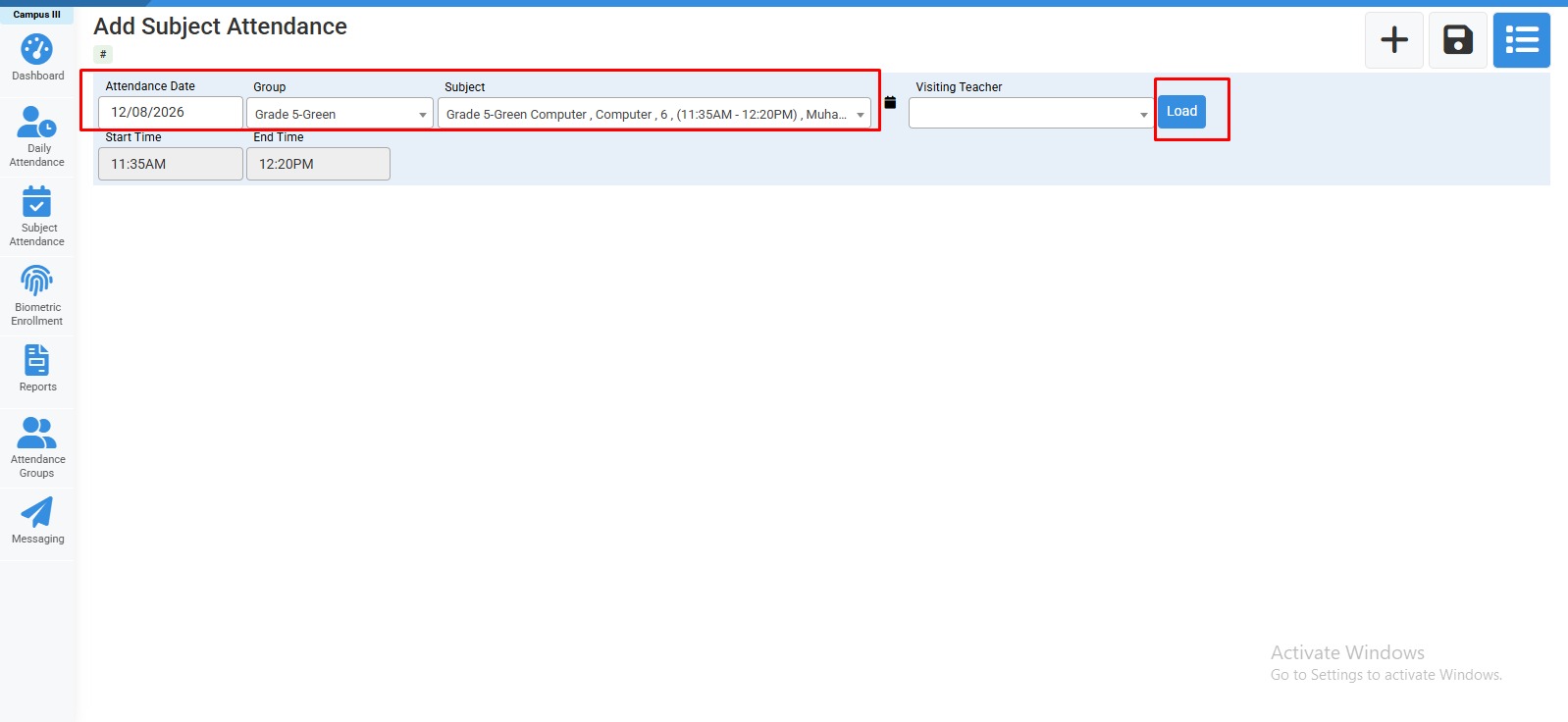
Select Group,Subject and load the page.
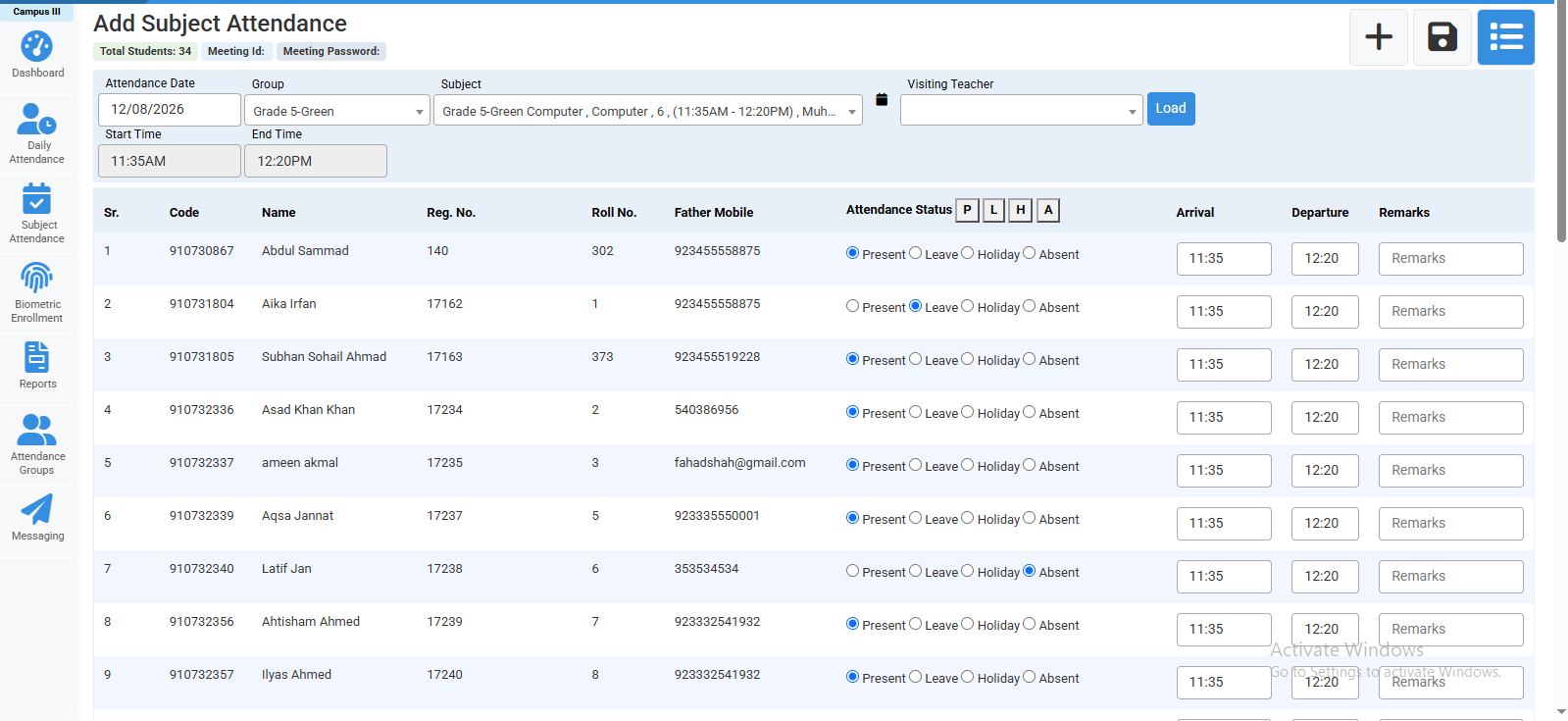
Mark subject attendance,edit arrival departure time,add remarks and save.
No video tutorial available.
No related articles found in this category.