
This Guide & Explain article helps you add a Diary in CloudCampus ERP LMS Academics.
It explains the required fields and simple steps for creating a diary entry.
Follow the steps below to create and save the diary successfully.
1- Go to the E-Learning/Resources module → Diary Management.
2- Click the Add (+) button to open the Create Diary tab.
3- Select the required Date for which the diary is being created.
4- Select the appropriate Teacher who is creating or assigning the diary.
5- Select the required Group for which the diary needs to be added.
6- Select the relevant Subject for the diary entry.
7- Select the Nill option if the diary is not related to a specific subject.
8- Click Save to create and save the diary successfully in the system.
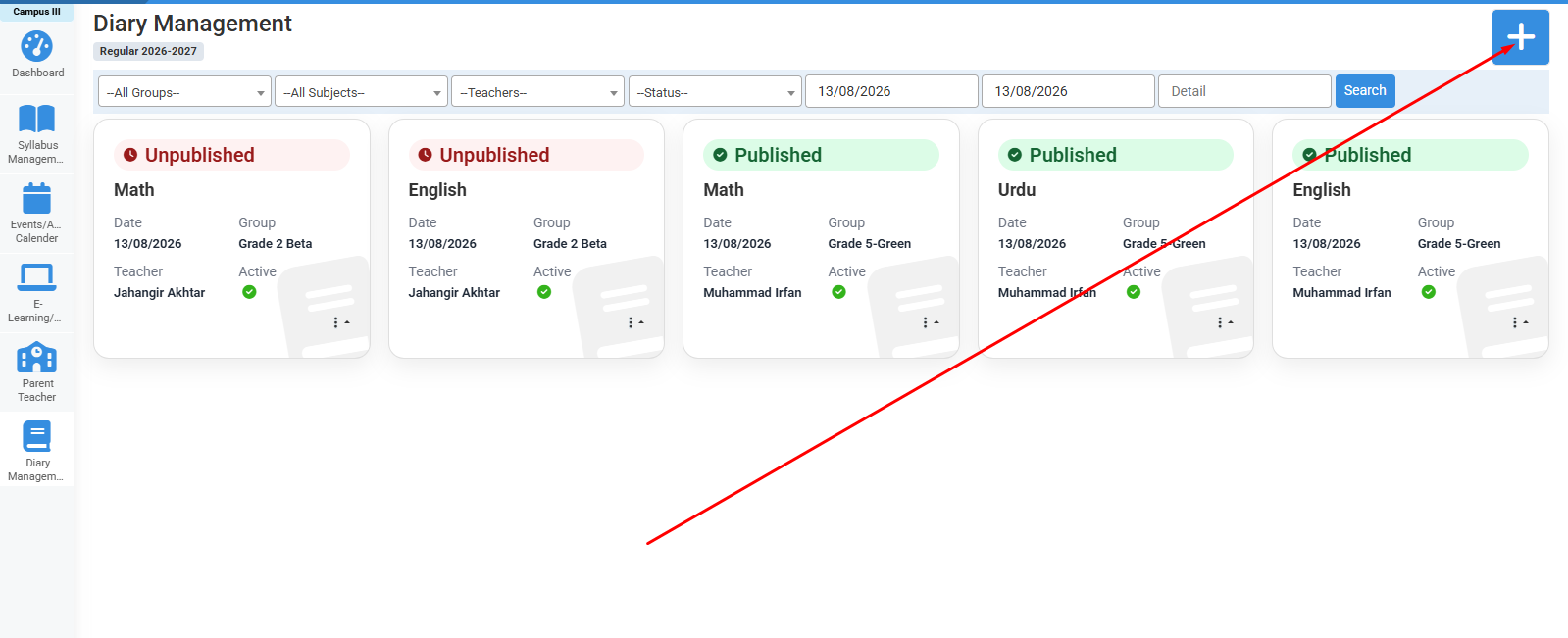
Click on "+" icon to add diary.
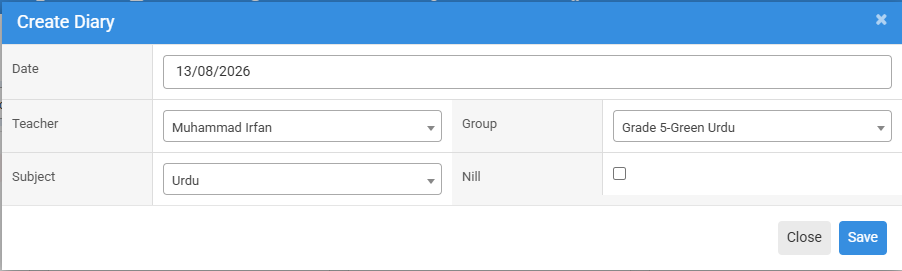
Fill all fields and click on save.
No video tutorial available.
No related articles found in this category.