Detailed Description
No video tutorial available.
No related articles found in this category.

This Guide & Explain article helps you add a PTM (Parent Teacher Meeting) in CloudCampus ERP LMS Academics.
It explains the required fields and simple steps for creating a Parent Teacher Meeting.
Follow the steps below to add and save the PTM successfully.
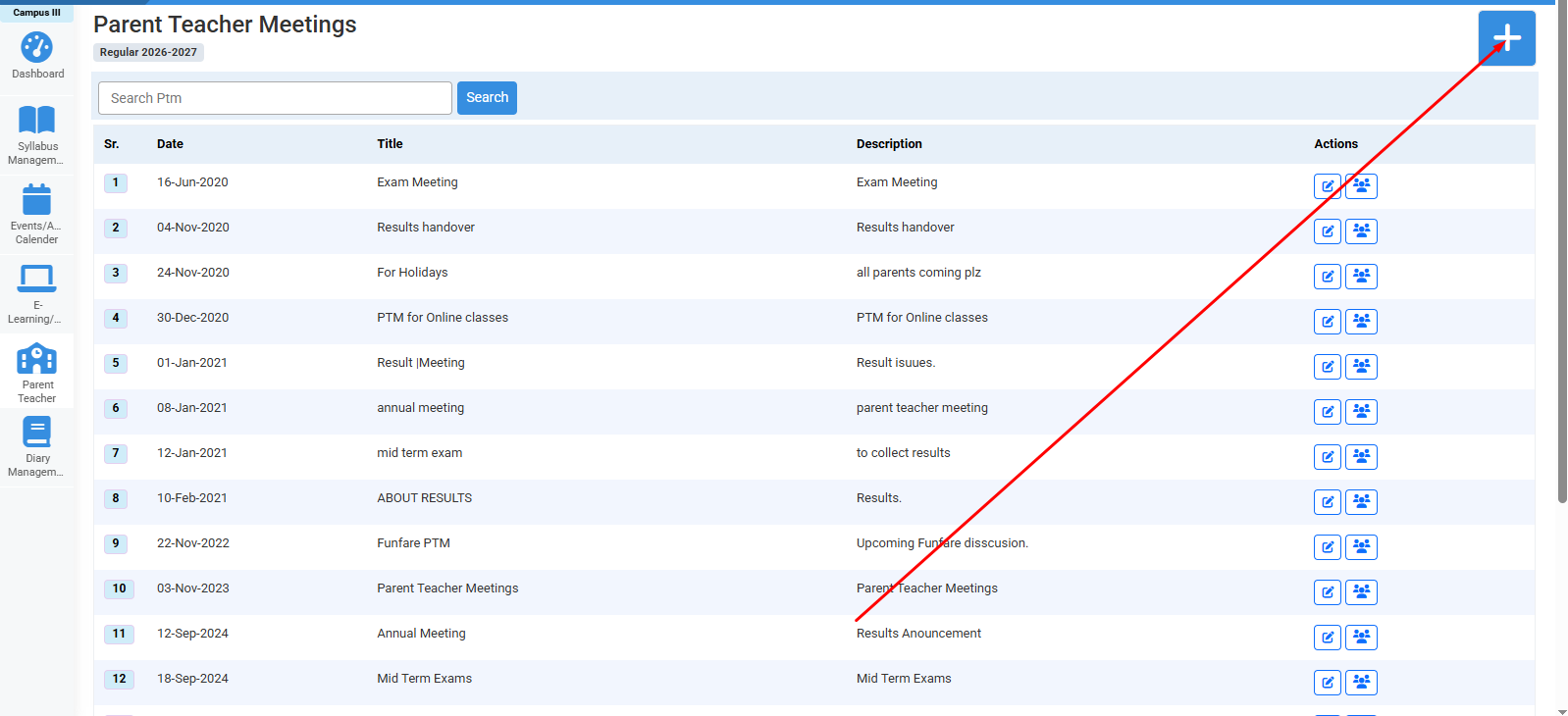
1- Go to the E-Learning/Resources module → Parent Teacher Meeting.
2- Click the Add (+) button to open the Add PTM form.
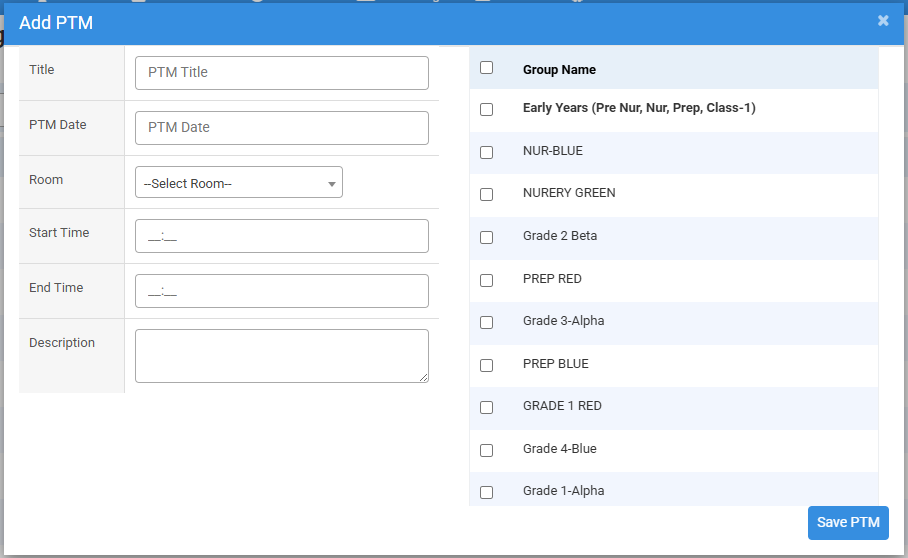
3- Enter the required Title for the Parent Teacher Meeting.
4- Select the required PTM Date for the meeting.
5- Select the appropriate Room where the Parent Teacher Meeting will be conducted.
6- Enter the Start Time of the meeting.
7- Enter the End Time of the meeting.
8- Enter the required Description to provide additional information about the meeting.
9- Select the required Groups by checking the checkbox next to each group for which the PTM is being scheduled.
10- Review all entered PTM Details and selected groups to ensure the information is correct.
11- Click Save PTM to create and save the Parent Teacher Meeting successfully.


Fill required fields & click save PTM.
No video tutorial available.
No related articles found in this category.