
This Guide & Explain article helps you update a Student Result in CloudCampus ERP LMS Academics.
Follow the steps below to update the required information in the result.
All available fields and result-related tabs can be managed from the Edit Result page.
1- Open the required Result to access the Edit Result page.
2- On the Main tab, view and update the student's result information.
3- Update the student's Obt. Marks by entering the correct marks in the relevant subject field.
4- Add or update Remarks to provide any additional information about the student's performance.
5- Select the appropriate Attendance Status such as Present, Absent, or Leave.
6- Select the required Result Status according to the student's result.
7- Use the Evaluation tab to view or update the student's evaluation-related information.
8- Use the Exam tab to view or update exam-related information.
9- Use the Logs tab to view the result update history and related records.
10- Review all updated information carefully and click the Save button to save the changes.
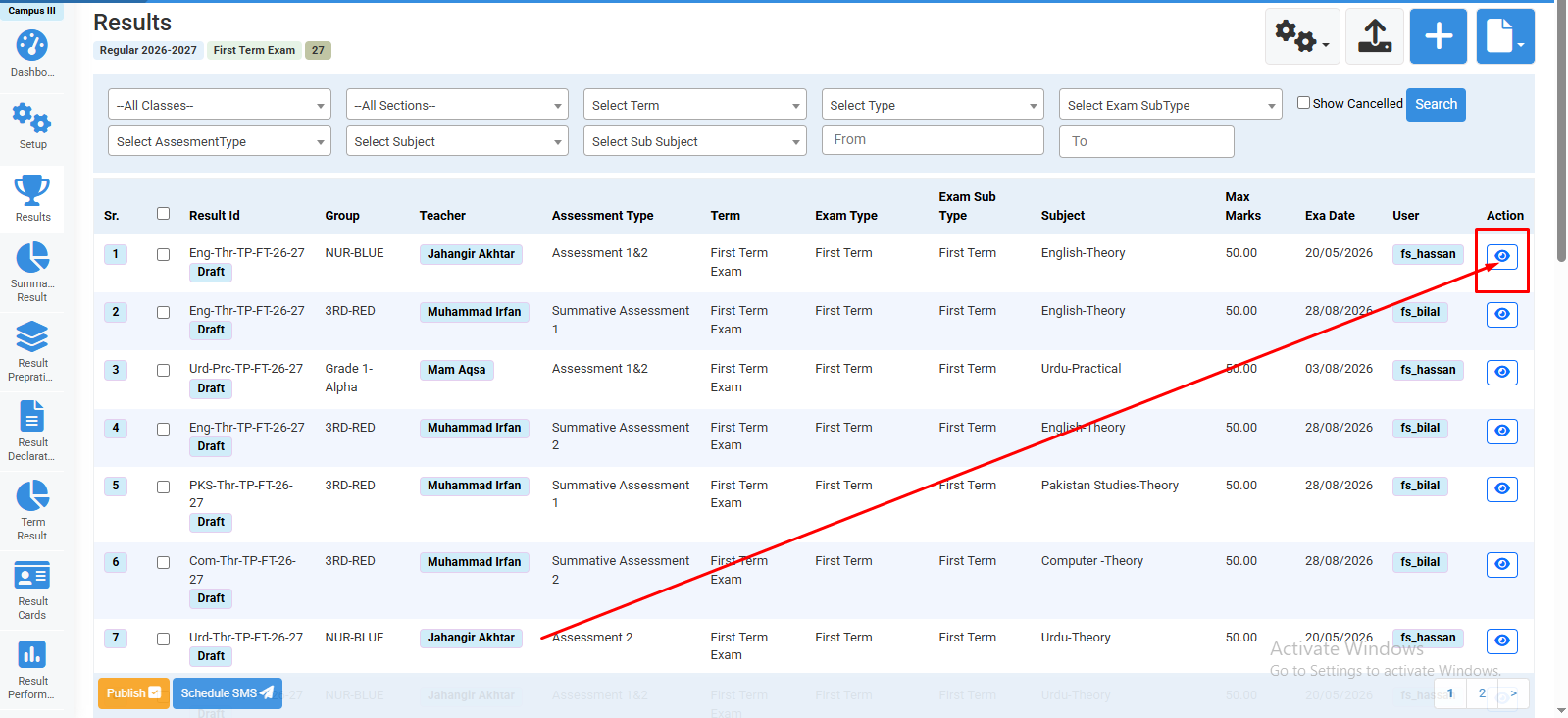
Click here to open result.
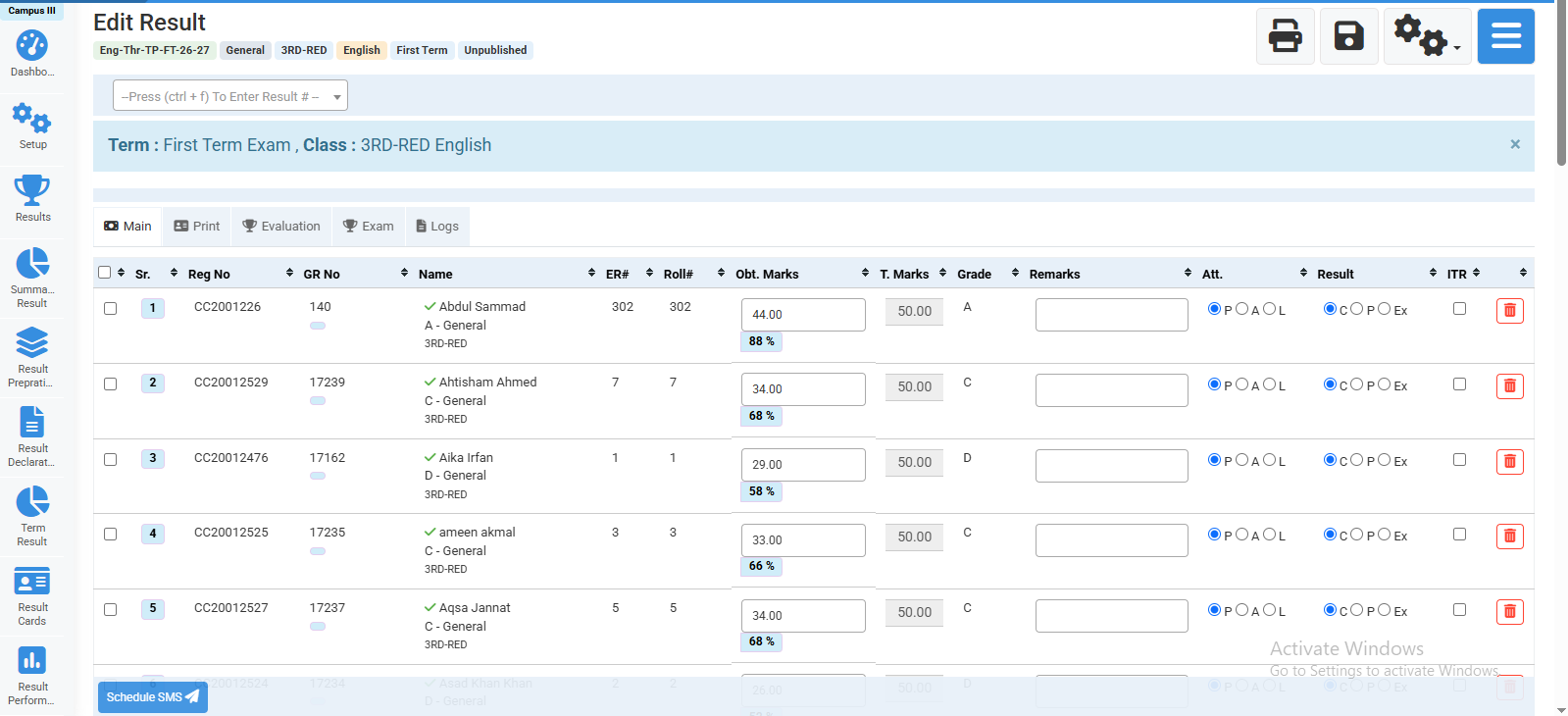
Edit/Update result.
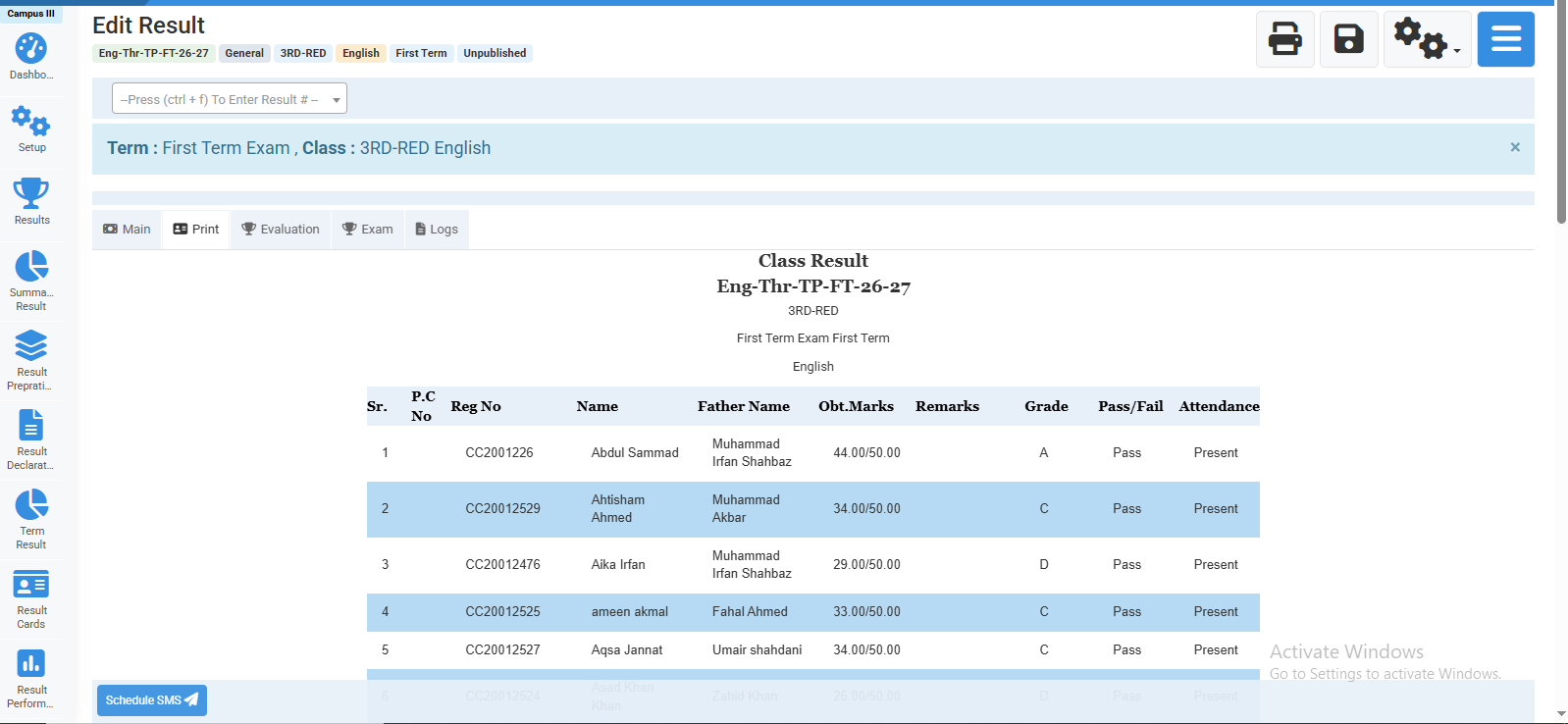
Print this result.
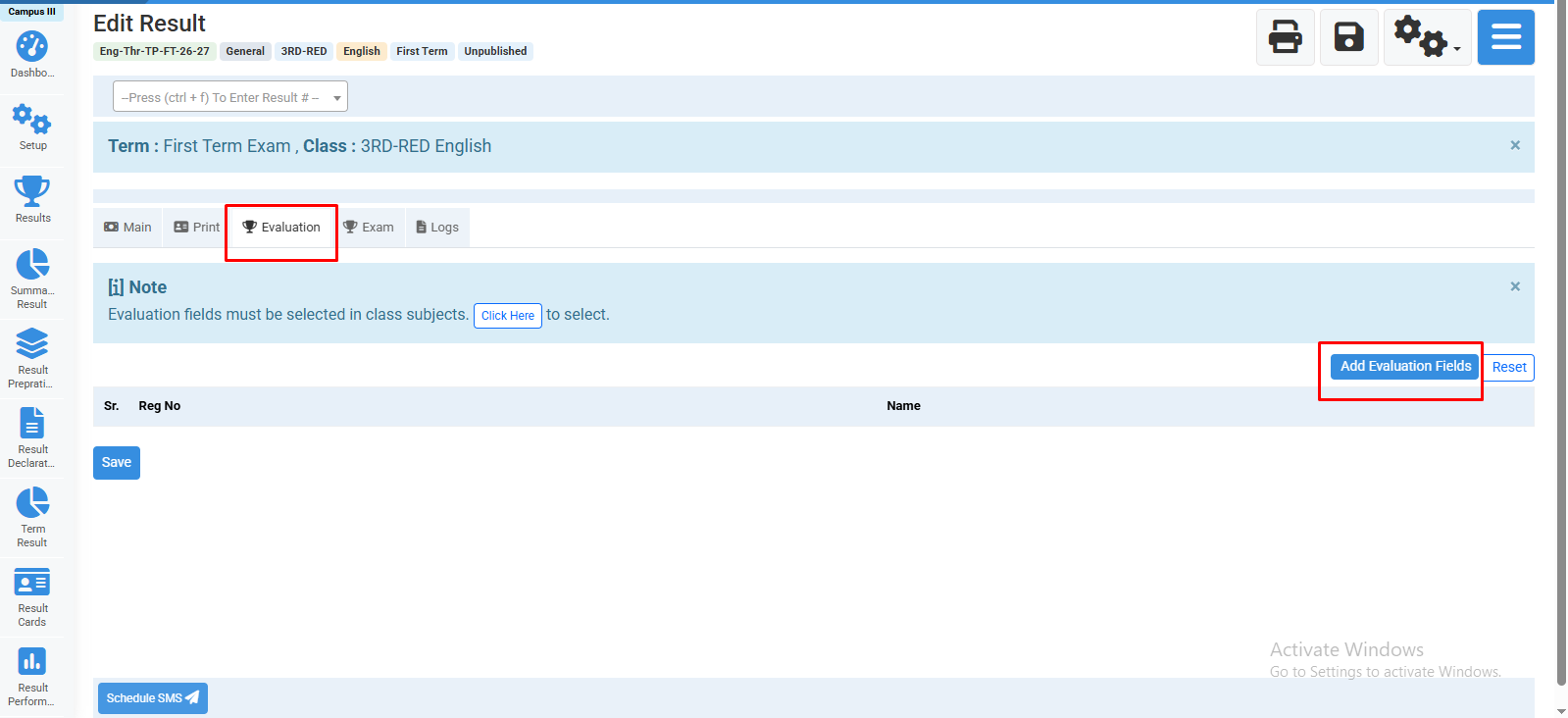
Add evaluation fields.
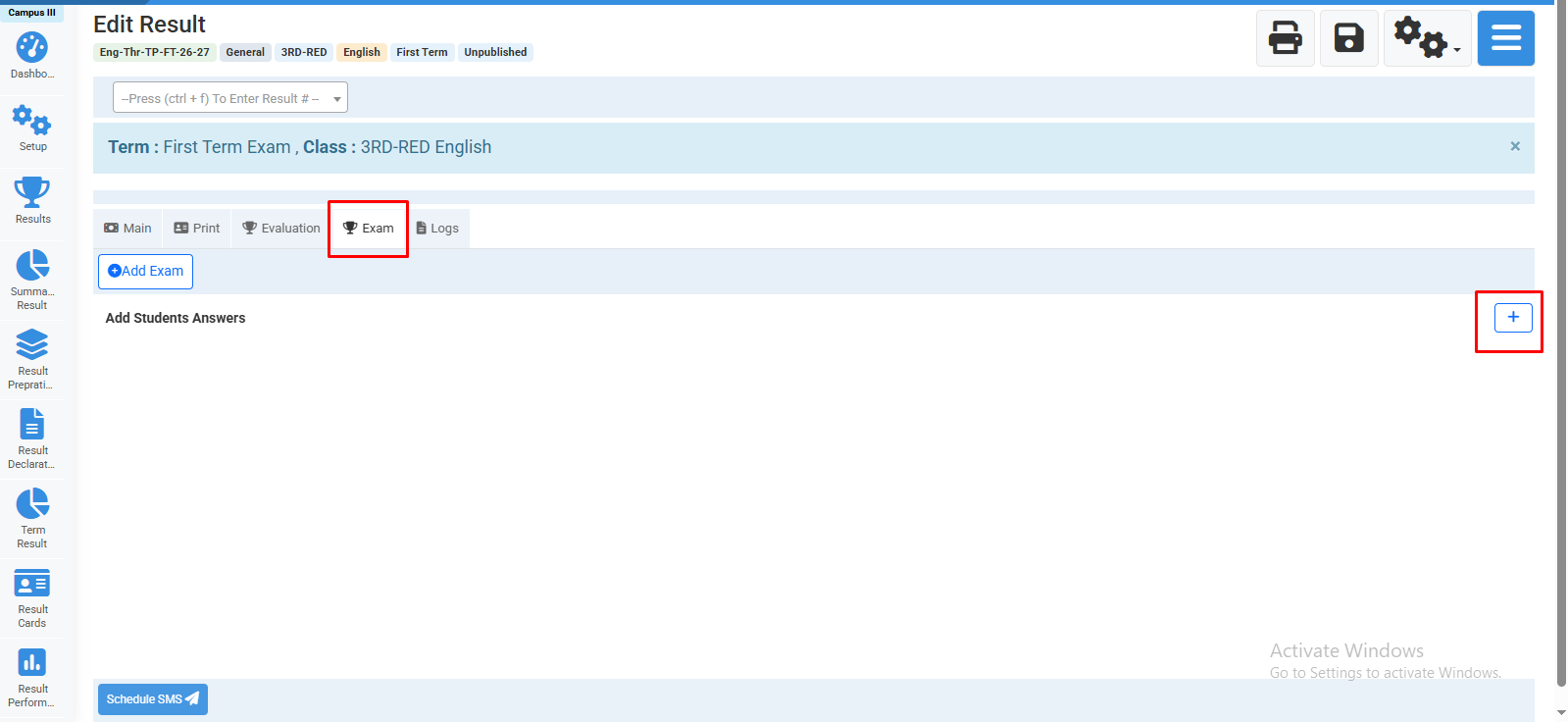
Add Exam if any.
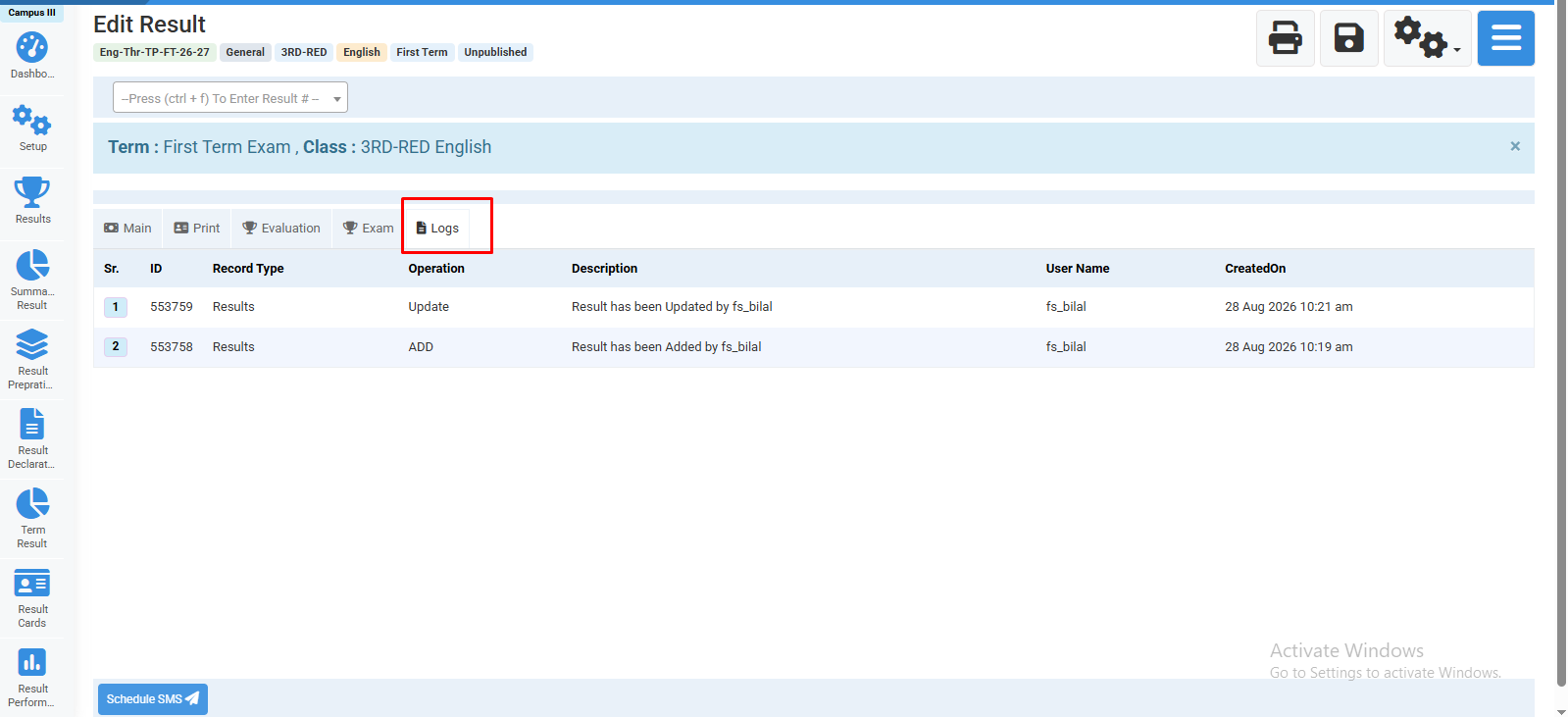
See logs.
No video tutorial available.
No related articles found in this category.