
This Guide & Explain article helps you edit a Student Result through Result Declaration in CloudCampus ERP LMS Academics.
It explains how to find the required student and update result information through the available result tabs.
Follow the steps below to edit the student result successfully.
1- Go to the Results module → Result Declaration and open the required declaration.
2- Click the Students tab to view the students included in the selected result declaration.
3- Select the required Class and Section to display the students of the selected class and section.
4- Search for the required student using the R.C Number and open the student record.
5- Review the student's Term Wise Result information and available result details.
6- Use the available Result Tabs in the center of the page to edit the required information.
7- Select the Remarks tab to update or add any required remarks for the student.
8- Select the Student Performance tab to view or update the student's performance details.
9- Select the Subject Wise Result tab to update the student's subject-wise result information.
10- Select the Exam Type Wise Result tab to view or update results according to the exam type.
11- Select the Assessment Wise Result tab to view or update the student's assessment-wise result details.
12- Select the Grading Template Wise Result tab to view or update result details according to the selected grading template.
13- Select the Attendance tab to update the student's required attendance information.
14- Save the changes using the available Save/Update option to successfully update the student's result.
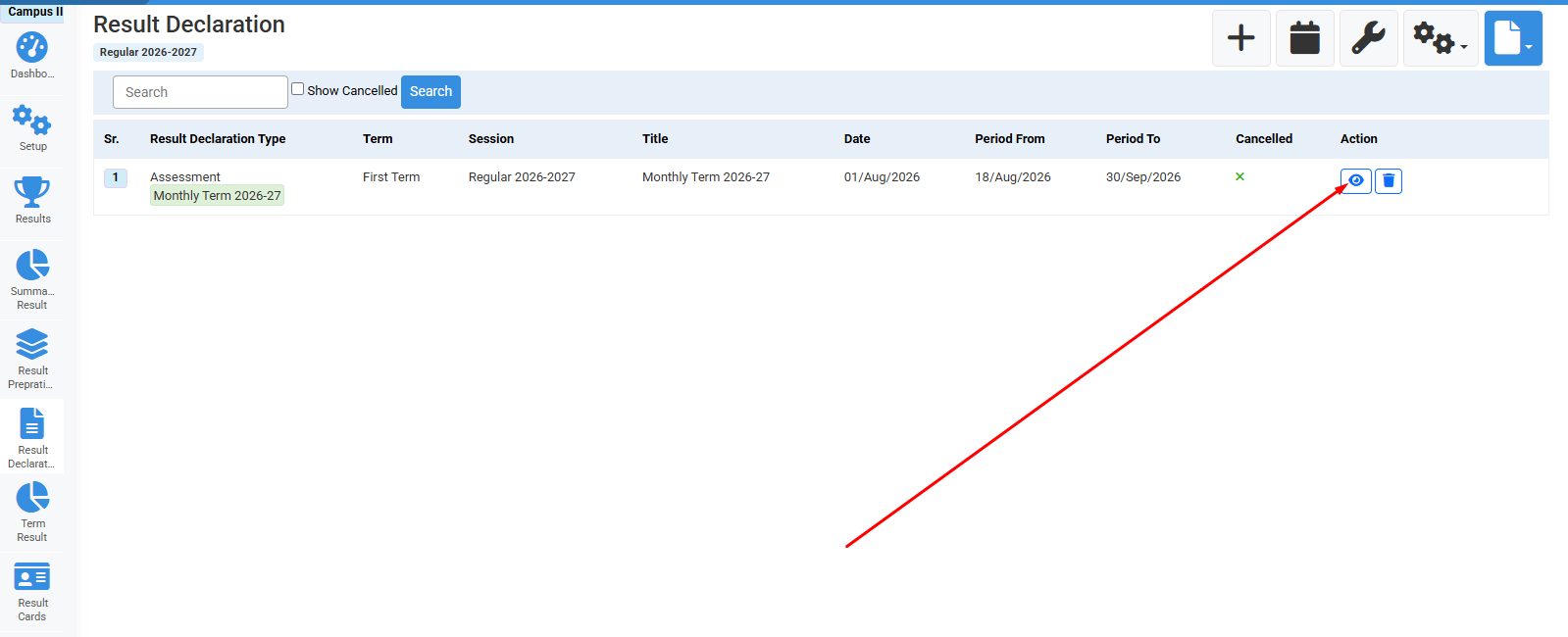
Click here to open Result declaration.
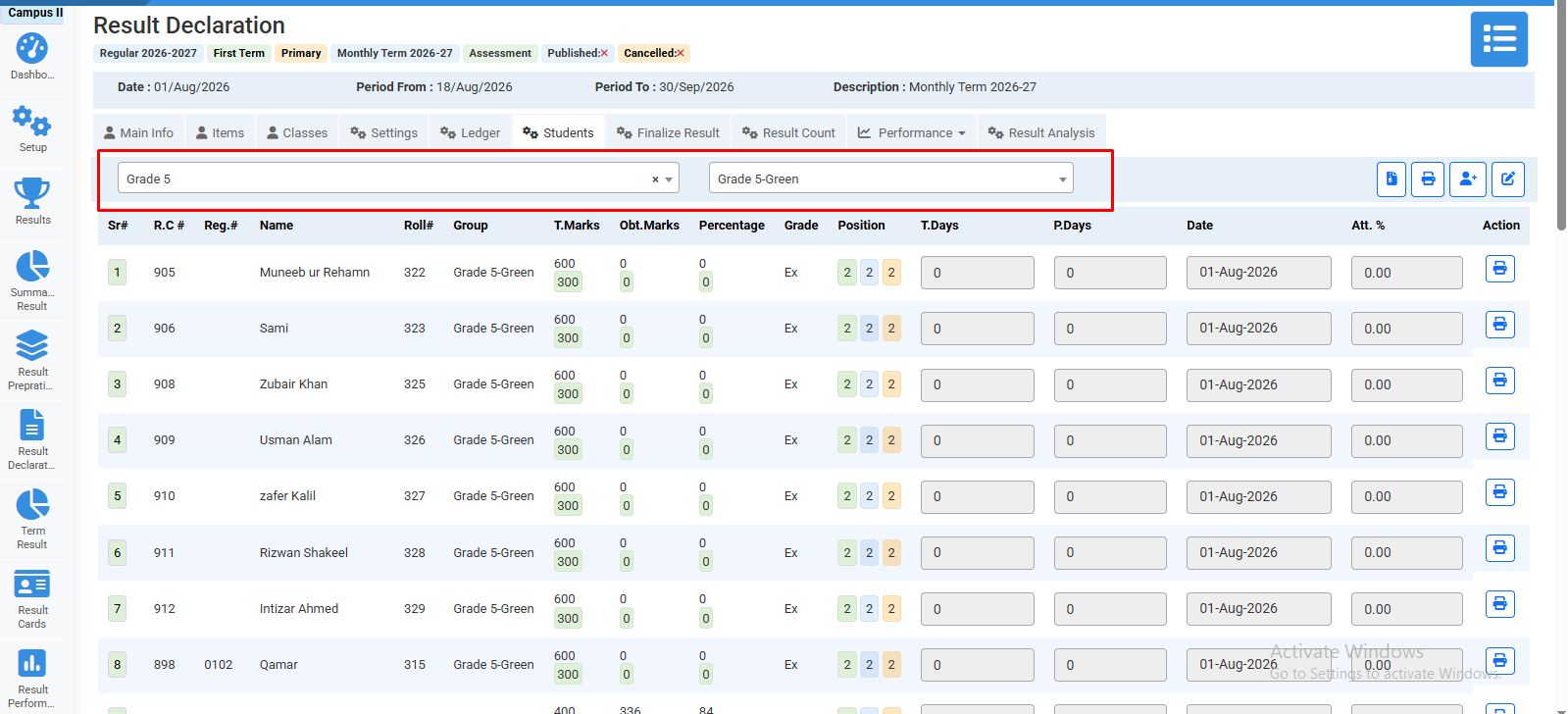
Select class & section.
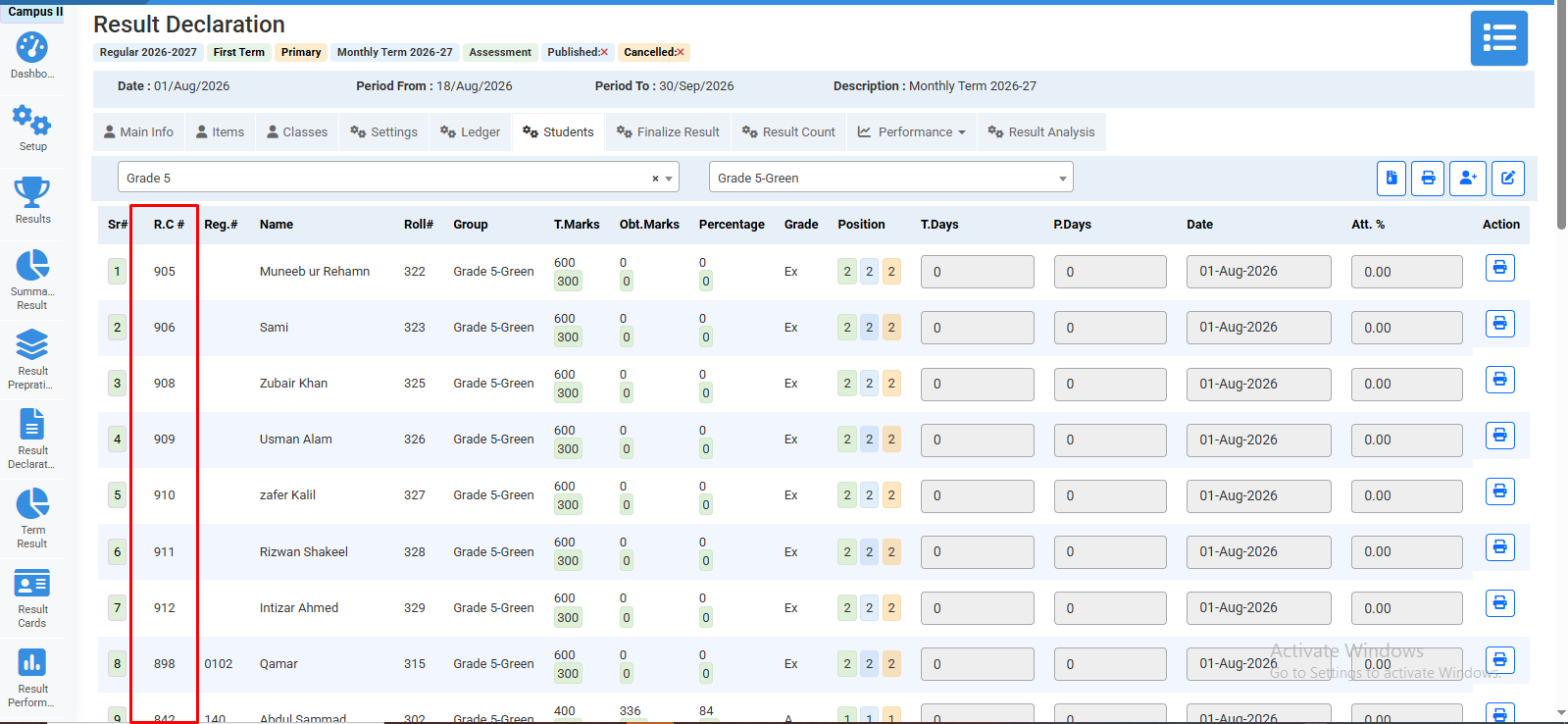
Open student by clicking on student R.C number.
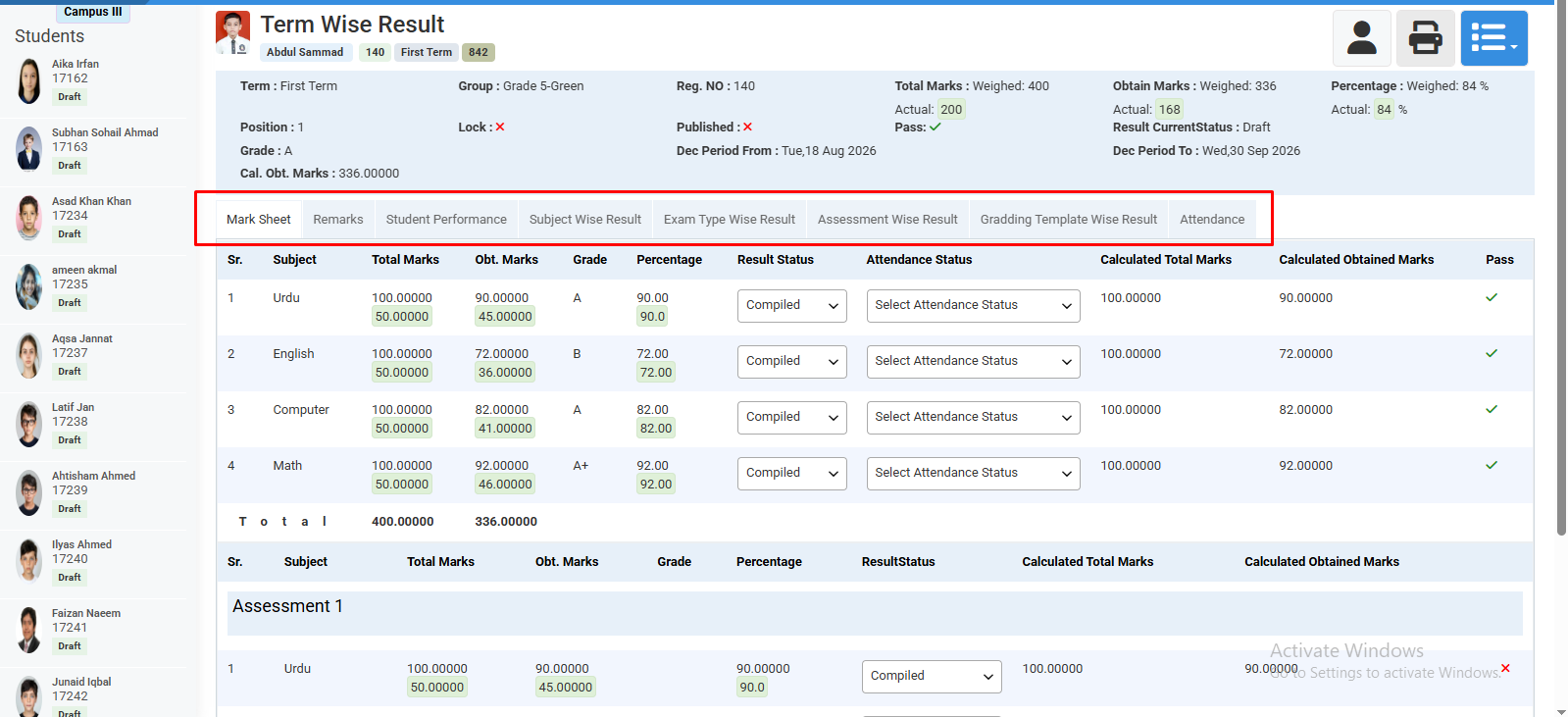
View & edit information.
No video tutorial available.
No related articles found in this category.