This Guide & Explain article helps you update Result Declaration Settings in CloudCampus ERP LMS Academics.
It explains the available settings and simple steps for updating the required result declaration options.
Follow the steps below to update the settings successfully.
1- Go to the Results module → Result Declaration and open the required result declaration.
2- Click the Settings tab to view the available Result Declaration settings.
3- Enable or disable Allow Class Teacher To Edit On Portal according to whether class teachers should be allowed to edit results from the portal.
4- Enable or disable Admin Can Edit to control whether administrators can edit the result from the admin panel.
5- Enable or disable Edit Attendance on Portal according to the required attendance editing permissions.
6- Select the required Result Edit Upto date to define the date until which results can be edited.
7- Enable or disable Show Result To Defaulters according to whether results should be displayed to fee defaulters.
8- Enter the required Defaulter Months to define the applicable defaulter period.
9- Select the required Type of Result from the available options.
10- Select the required Template For Progress Report to define the progress report format.
11- Select the required Template For Result Card to define the result card format.
12- select the required Logo For Result card on result cards.
13- Settings will be Save/Update in that declaration.
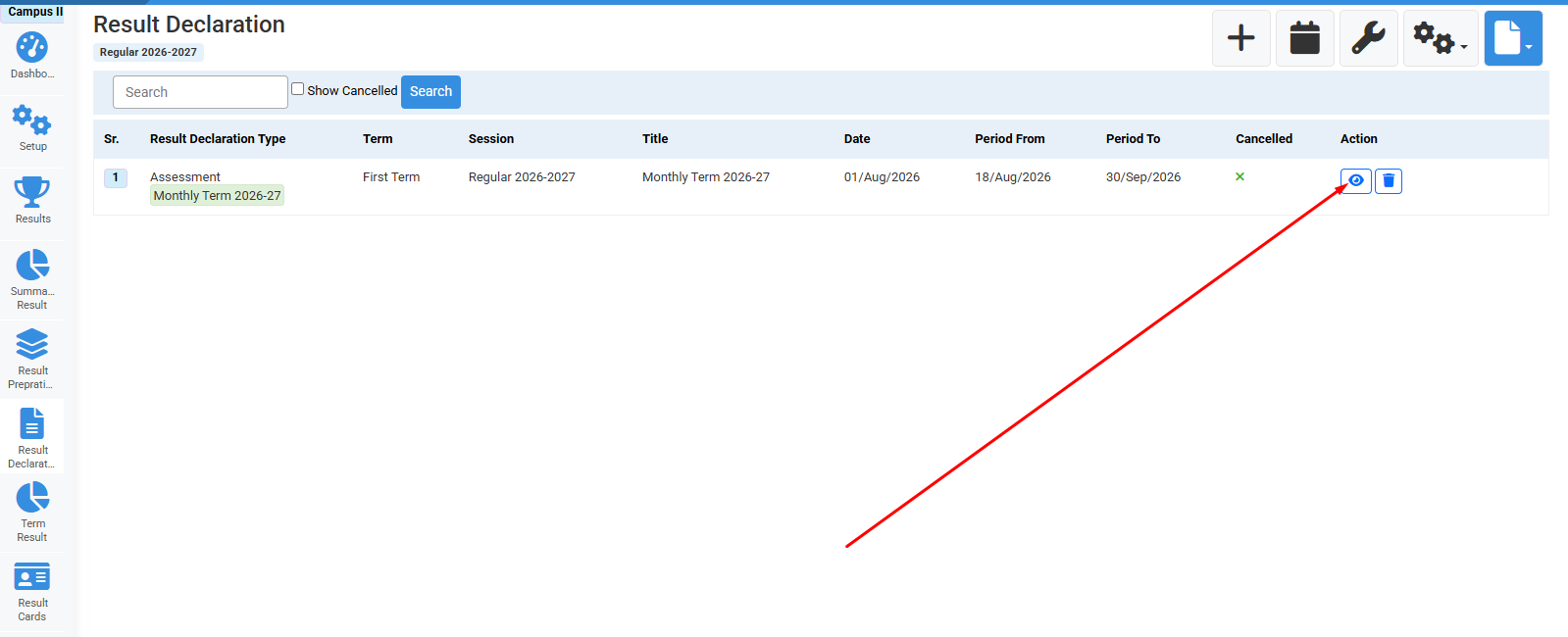
Click edit to open decleration.
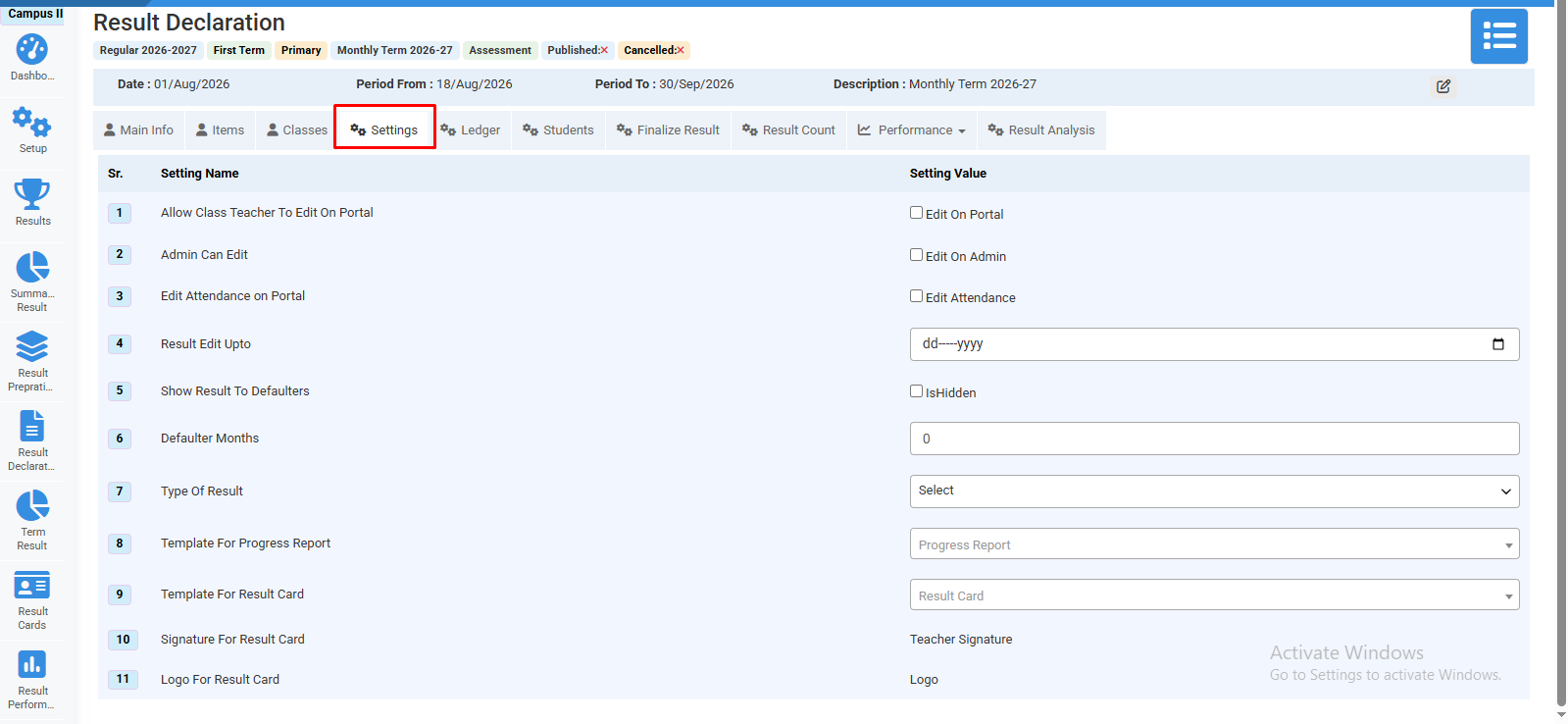
Select desired options.
No video tutorial available.
No related articles found in this category.