Detailed Description
No video tutorial available.
No related articles found in this category.

This Guide & Explain article helps you view different Result Reports in CloudCampus ERP LMS Academics.
It explains how to access the Result Reports page and view the available result-related reports.
Follow the steps below to view the required result report easily.
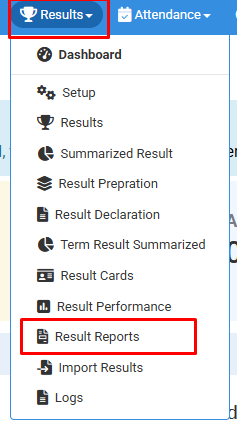
1- Go to the Results module → Result Reports.
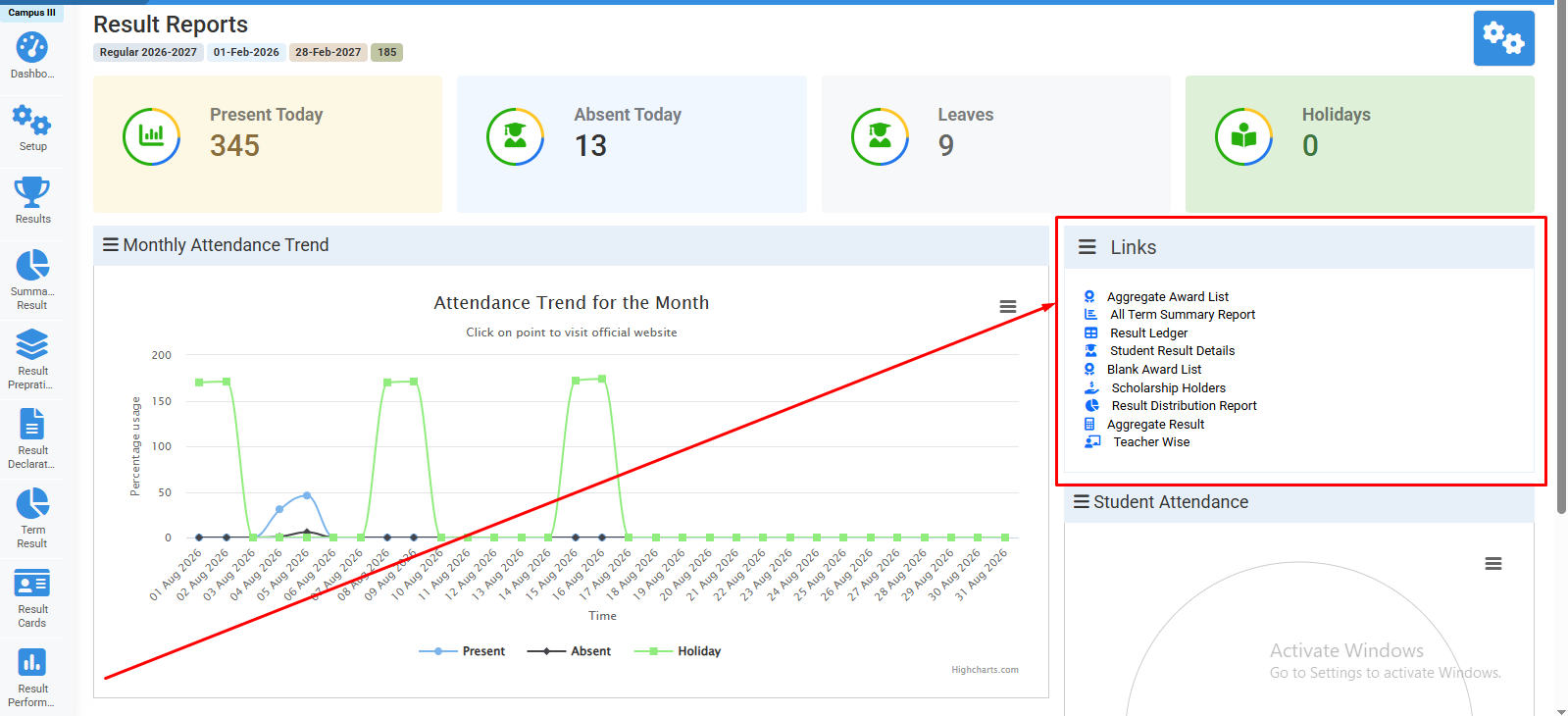
2- The Result Reports page will display different result information along with the available report links.
3- Click Aggregate Award List to view the aggregate award list.
4- Click All Term Summary Report to view the summary of results for all terms.
5- Click Result Ledger to view the result ledger information.
6- Click Student Result Details to view detailed result information of students.
7- Click Blank Award List to view the blank award list.
8- Click Scholarship Holders to view the list of students holding scholarships.
9- Click Result Distribution Report to view the distribution of student results.
10- Click Aggregate Result to view the aggregate result information.
11- Click Teacher Wise to view result information according to teachers.
12- Select the required Report according to your requirement and review the available result information.
13- Use the available Report Filters or Options to view the required result data, where applicable.

Click results>result reports.

Select required result report.
No video tutorial available.
No related articles found in this category.